04
Create and edit processes
Every process has a global template, the standard way it runs, and local variants for instances where it runs differently. Every save is a new version; nothing is overwritten.
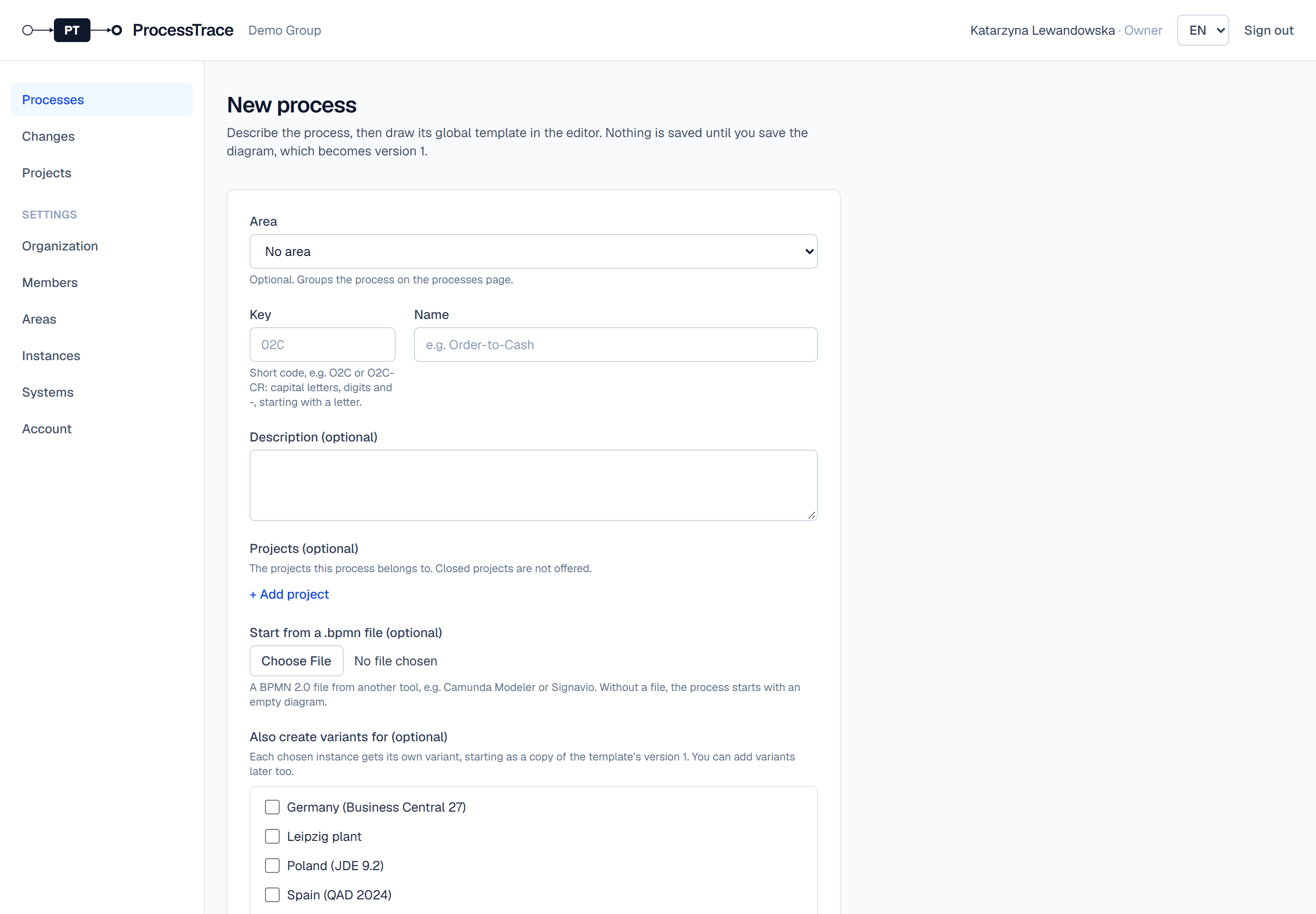
Create a process
- 1On Processes, click New process.
- 2Choose the area, enter a key (e.g. O2C) and a name, and optionally a description and the projects it belongs to.
- 3To start from an existing BPMN 2.0 file, for example from Camunda Modeler or Signavio, choose it under Start from a .bpmn file.
- 4Under Also create variants for, tick the instances that need their own variant right away.
- 5Click Continue to the editor, draw the template and click Save…: the process is created with your diagram as version 1.
Edit a map
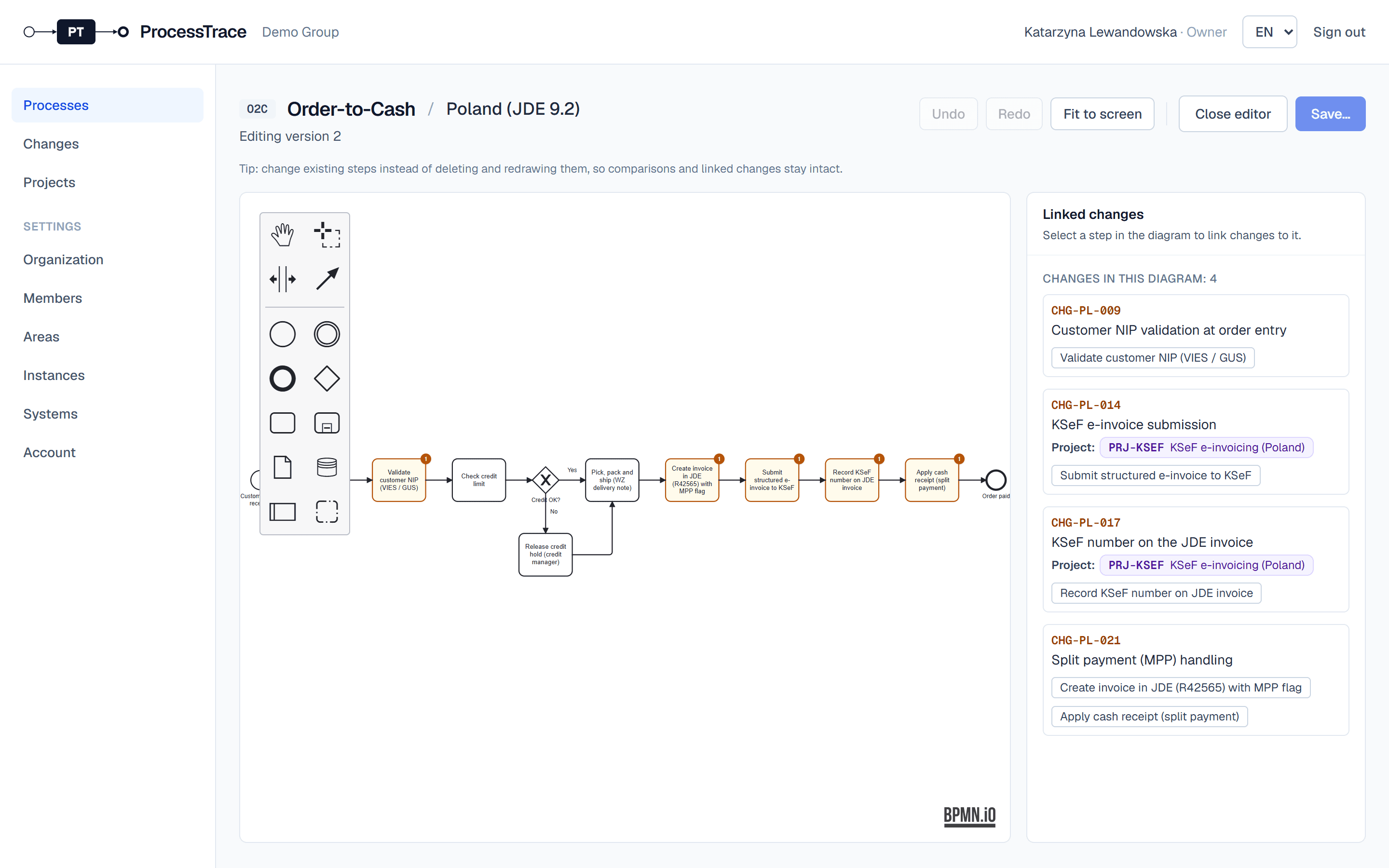
- 1Open a version and click Edit.
- 2Draw with the palette on the left. Change existing steps instead of deleting and redrawing them, so comparisons and linked changes stay intact.
- 3Click Save…, describe what changed and why, and choose the stage: As-is (how the process runs today) or To-be (a planned change).
Tip: Editing an older version creates a new latest version from it. If someone saved a newer version meanwhile, you are told and can save anyway.
Add a variant for an instance
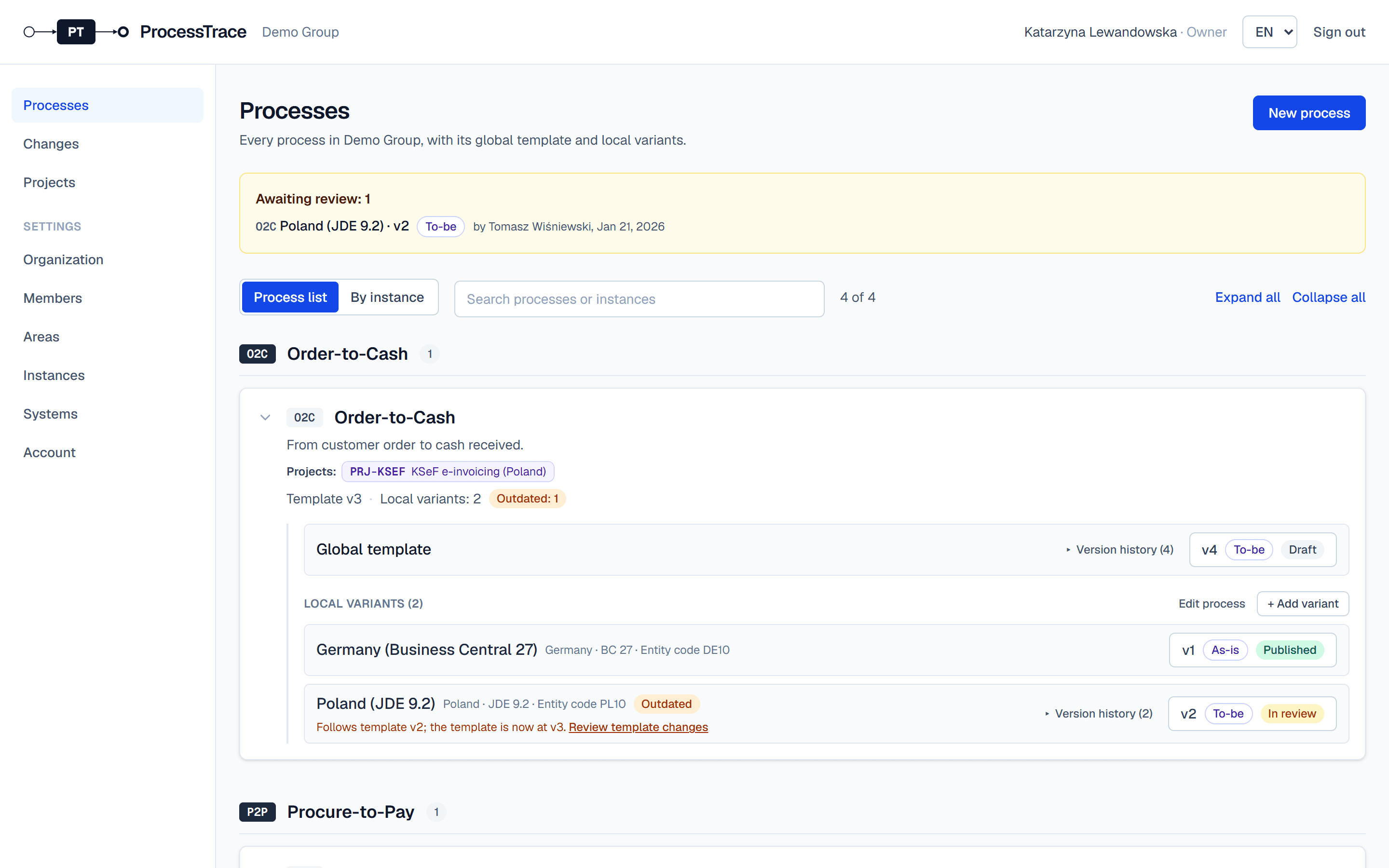
- 1On Processes, open a process and click + Add variant.
- 2Choose the instance (or create a new one), the template version to start from and the stage.
- 3The variant starts as a copy of the template; edit it to show how the process runs there.
Tip: Where an instance has no variant, the global template applies. The By instance view shows, for each instance, the version in force.
Download a map
- 1Download .bpmn on any version gives you a standard BPMN 2.0 file that opens in other BPMN tools, such as Camunda Modeler.