05
Register changes
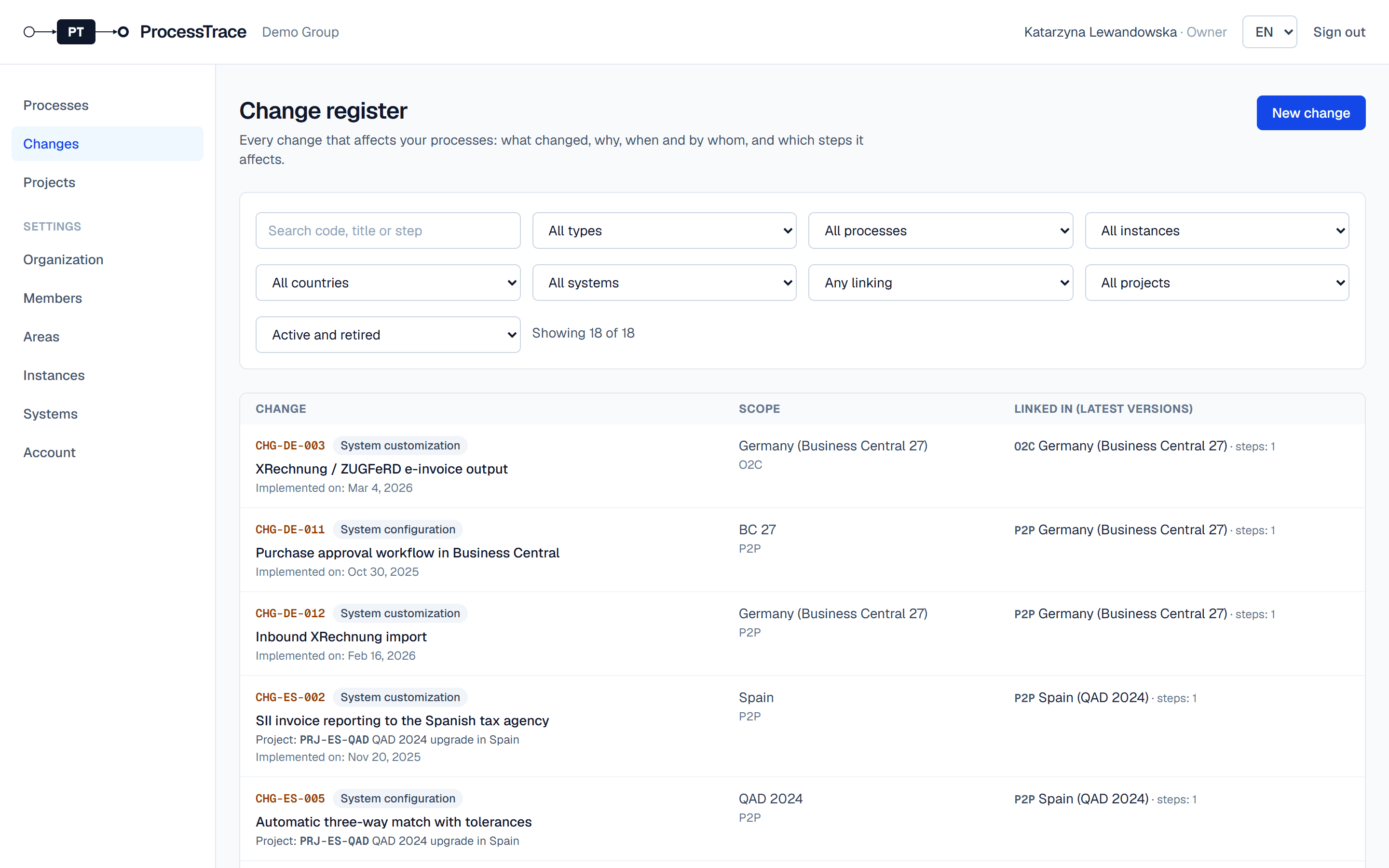
The change register records what changed, why, when and by whom, from system configuration to new ways of working. Each change is linked to the steps it affects, in every map where it applies.
Register a change
- 1Open Changes and click New change.
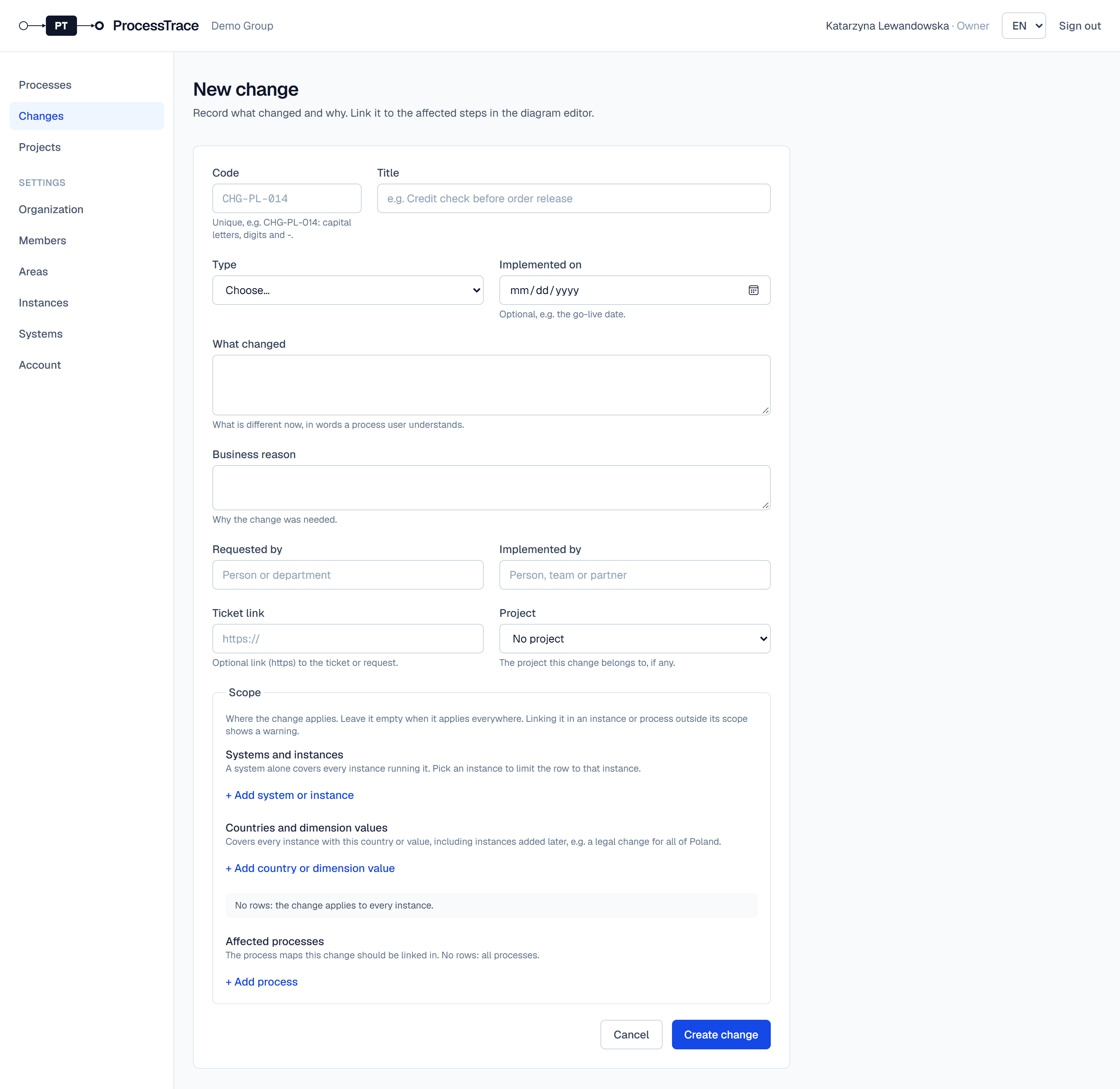
- 2Enter a code (e.g. CHG-PL-014; it can’t be changed later), a title, the type and the implementation date.
- 3Describe the change and the business reason, the requester and the implementer, and optionally add a ticket link and the project.
- 4Under Scope, add where it applies: an instance, a system version, a country or a dimension value. No rows means everywhere. Then add the affected processes; none means all.
Link a change to steps
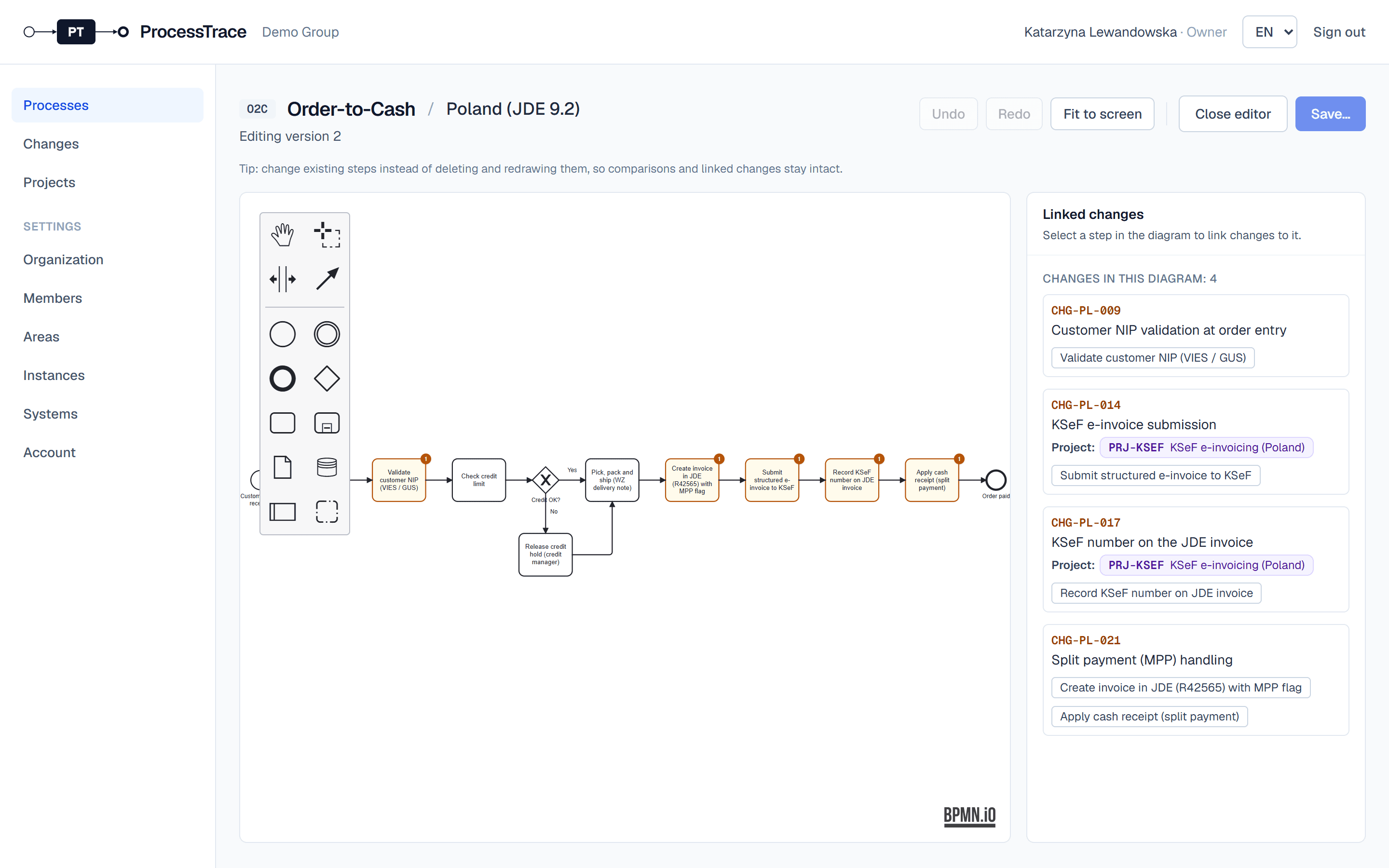
- 1Open the map in the editor and select a step.
- 2In the panel on the right, pick the change. Changes that apply here but aren’t in the map yet are listed first. You can also register a new change there.
- 3Save the version. The step gets a badge, and the changes panel next to the map shows its changes.
See where changes are missing
- 1The register shows where each change is linked and where it is still missing. Filter by process, instance, country, system, project or linking.
- 2A change’s page lists every map it applies to, with Link in editor where it is missing.
- 3Retire a change that no longer applies. A change that no version ever linked can be deleted.